Use FishXCode in Cursor
First time here? Complete Account Setup and generate your API Key in the console.
1. Open Cursor Settings
Open Cursor and click the settings icon in the top-right corner.
2. Go to Models
In the left sidebar, click Models.
3. Add a model and fill in API Key / Base URL
Click Add model, then fill in:
- API Key: your FishXCode key
- Base URL:
https://api.fishxcode.com/v1
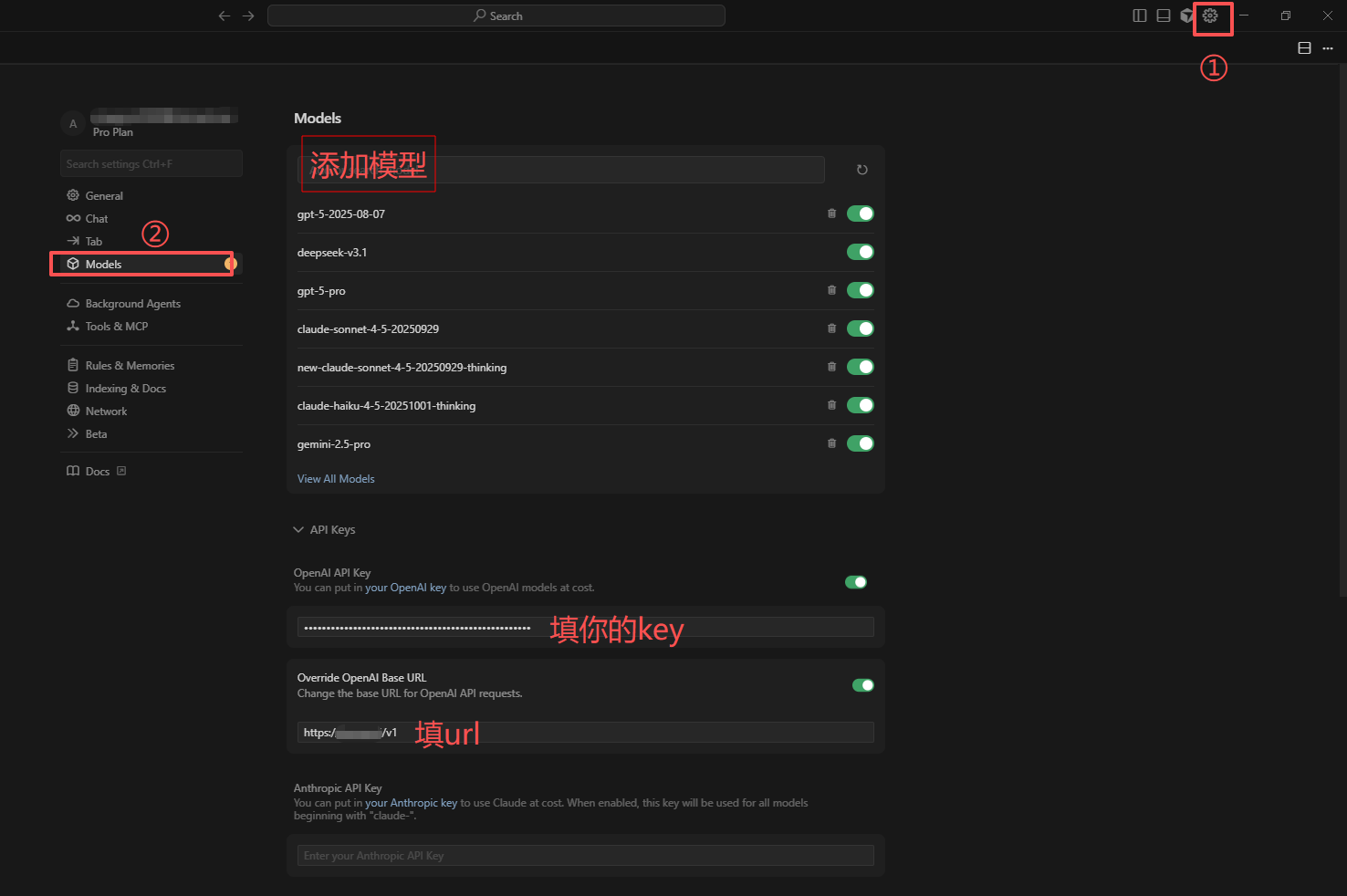
Legend:
- Settings entry
- Models menu
- Add model button
- API Key input
- Base URL input
4. Save and verify connection
- Start a new chat
- Select the enabled model
- Send a test prompt
- Normal response means success